Manage deployments
This page covers the Deployments page and the three actions you'll reach for when something needs to change: Redeploy, Instant rollback, and Abandon.
Prerequisite: your first deployment exists.
The Deployments page
Your project's Deployments tab lists every build: status, commit and message, branch, age, and a LIVE badge on whichever build your domains currently serve. Filter by status or branch; click a row for the full detail — every deployment has its own shareable URL (/projects/<id>/deployments/<deploymentId>).
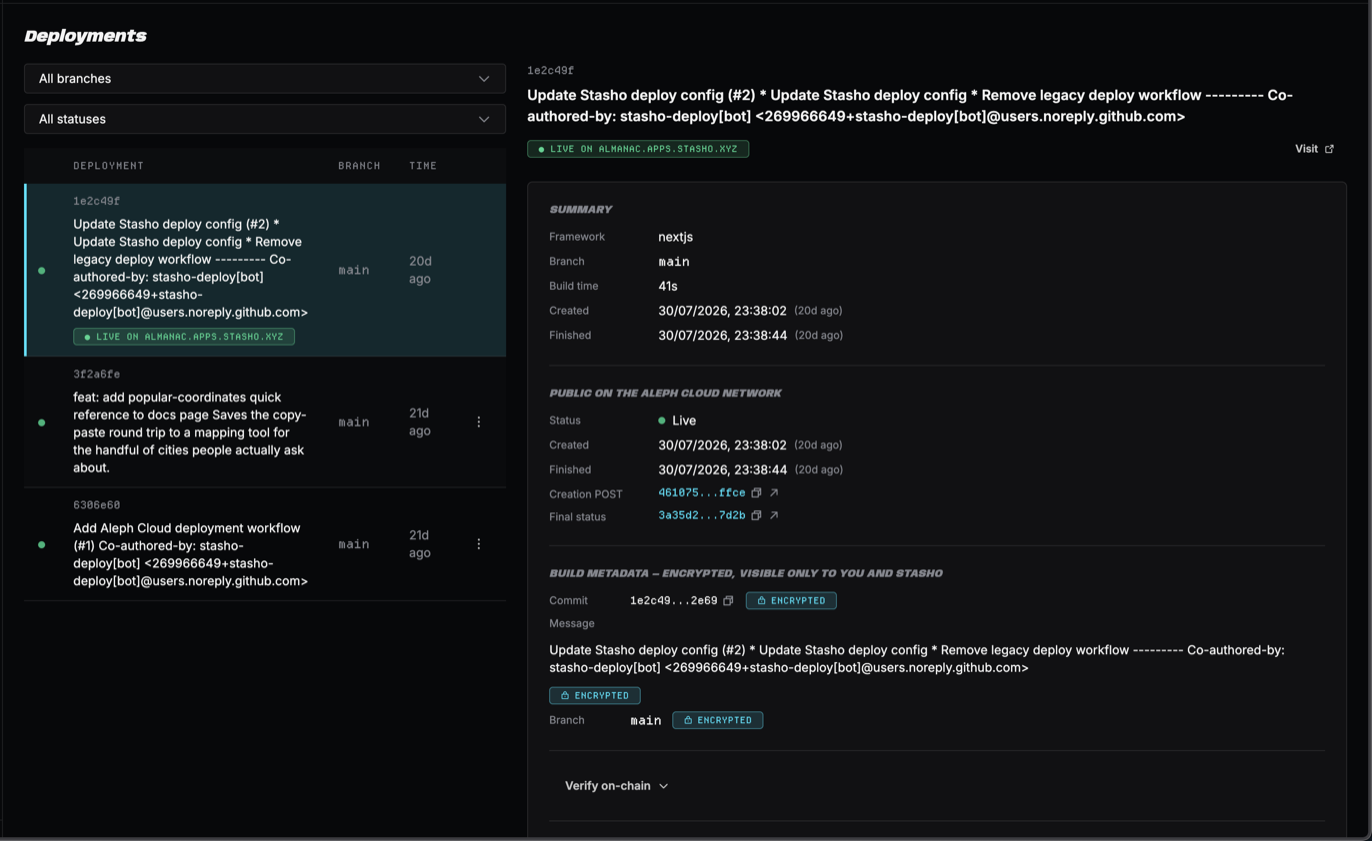
The detail pane shows the build's facts (CID, framework, branch, build duration), its source (commit, message, error output if it failed), and its on-chain record:
- Verify on-chain — a collapsed expander showing the chain of on-chain messages behind this deployment, each linking to a public explorer. See Your data on-chain for what you can verify.
- Raw JSON — the unprocessed on-chain messages, for the skeptical.
Redeploy
What it does: builds and publishes the latest commit on your production branch, without you pushing anything. Note it's not a re-run of an old build — if the branch has moved since the last deploy, you get the new commits.
When to use it: after a failed build you've since fixed, after changing environment variables or build settings, or any time you want a fresh build without an empty commit.
Click Redeploy on the project Overview. The button dispatches the workflow and waits for the new deployment row to appear — GitHub's runner queue can be slow, so after ~30 seconds you'll get a link to the Actions run for reassurance. If the button reads Re-authorize instead, a deploy write was blocked pending a signature from you — see Keys & authorizations.
Instant rollback
What it does: re-points your live site to a previous build, instantly, with no rebuild. Every past build is still pinned on IPFS at its own CID — rollback just changes which one your domains serve.
- On the Deployments page, pick any previous
livebuild and click Roll back to this - The confirmation dialog shows exactly what will change — each attached domain and the CID it will serve — plus a Preview this build link so you can eyeball the target before committing
- Confirm. Domains re-point in roughly 15 seconds
After a rollback, the serving build shows a LIVE · rolled back badge with an Undo rollback button that re-points back to the latest build.
A rollback is not a pause. The next push to your production branch (or Redeploy) builds and publishes normally, and your domains serve that new build. Roll back to buy time while you fix the bad commit — then push the fix.
Only builds that completed (live, with a pinned artifact) can be rolled back to — a failed build never produced anything to serve.
Abandon
What it does: marks an in-flight deployment as failed, immediately and permanently. Offered on the Overview's pipeline card while a deployment is anywhere between pending_workflow and pinning.
Your site is unaffected — it keeps serving the last good build. The app also tries to cancel the GitHub Actions run, but even if the workflow finishes on GitHub's side, the abandoned deployment stays failed and nothing gets published from it.
When to use it: a deploy is stuck and you want to clear it now instead of waiting — note that anything stuck in-flight for 30+ minutes is auto-failed for you anyway.
Verification
- After Redeploy: a new deployment row appears and walks the pipeline to
live - After Rollback: the target build wears the LIVE badge, and your domain serves it (allow ~15s, longer if the domain shows FINALIZING — see custom domains)
- After Abandon: the deployment reads
failedand the previous build still serves