Your App VM
Some projects deploy to a full server instead of static files. This page explains how that server, your App VM, works: what Stasho can and can't do to it, what actually runs there, and what you can check yourself.
Prerequisite: none, but Your data on-chain covers the encryption and verification model this page builds on.
The model in one paragraph
Your App VM is one machine, provisioned under your wallet, that you own for as long as it exists. Each server app you deploy to it runs as its own process, a systemd service, watched over by the supervisor: a small always-on program that installs each server app, restarts it if it crashes, and reports its state back to the dashboard. Your usage stats (live CPU and memory per server app) are encrypted before they ever leave the VM, so only you can read them. The VM itself bills hourly for as long as it exists, whether or not any server app on it is running; deleting the VM is the only thing that stops the cost.
What's public, what's encrypted
| Public by protocol | Encrypted |
|---|---|
| IPv6 address, and the IPv4 host and port used for SSH (a NAT mapping) | Your project names |
| Allocation: vCPU, RAM, disk | Your usage stats: live CPU and memory per server app |
| VM image version and supervisor version | |
| SSH public key and fingerprint | |
| Each server app's workspace directory name (derived from your project's root directory setting) |
The public column above is provisioning detail that's already visible to anyone who reads the underlying on-chain message or asks the CRN hosting your VM directly; none of it is a Stasho decision to disclose, and deleting the VM doesn't retroactively hide what was public while it ran (deleting is itself a public, on-chain message). What stays encrypted is exactly what would otherwise leak your project identity or activity: the project's own name, and how hard it's actually working. See Your data on-chain for the same split applied to projects and deployments.
Ownership and trust
Your App VM is provisioned under your wallet, and only your wallet's on-chain activity decides what runs on it. Stasho holds no SSH key to your VM and cannot log into it. Code reaches the VM by exactly one path: the supervisor, a small always-on program running on the VM itself, pulls your bundle from the public network, checks it, and runs it. There is no push path from our backend, and no remote-exec channel into your VM.


You don't have to take that on trust. Before the supervisor runs a single line of your code, it works through a chain of checks, and every one of them is either an on-chain fact or a cryptographic proof, never a claim from Stasho:
- Resolve your deployment's on-chain storage reference and fetch the encrypted bundle from the storage network.
- Hash the fetched bytes and compare them against the hash your deployment recorded on-chain. A mismatch is rejected before anything is decrypted.
- Decrypt the bundle using the VM's own private key, a key nobody (not Stasho, not you) holds a copy of anywhere else. A wrong key or tampered ciphertext fails this step outright.
- Validate the unpacked manifest, including a check that the app was built for the exact Node.js major version the VM runs.
- Re-hash the unpacked application code against the hash recorded inside the bundle itself.
- Only after every step above passes does the supervisor start the process.
This is the same verify-what-runs principle described in Your data on-chain, applied to a running server instead of a static file. The exact wire format each step checks against is documented in the storage schema.
Filesystem layout and unit naming
The supervisor and your server apps use a fixed set of paths on the VM:
| Path | What's there |
|---|---|
/var/lib/stasho/vm-key | The VM's own private key, generated the first time it boots. Never leaves the VM. |
/var/lib/stasho/state.json | The supervisor's own record of what it has already applied: assigned ports, deployed bundles, its own version. |
/srv/apps/<projectId>/<deploymentId>/ | Your unpacked application code, one directory per deployment. The supervisor keeps the newest 3 per project and removes older ones. |
/etc/systemd/system/stasho-app-<projectId>.service | The systemd unit for your server app, written and rewritten by the supervisor on every deploy. |
The supervisor itself runs as its own unit, stasho-agent.service (the unit's file name is a fixed technical identifier and doesn't follow the supervisor/App VM naming used everywhere else on this page).
Everyday operations
SSH into your VM (with your own key; no key from Stasho is ever involved) and use systemd directly to inspect or restart your app:
# Watch a project's logs live
journalctl -u stasho-app-<projectId> -f

# Check whether it's currently running
systemctl status stasho-app-<projectId>

# Restart it
systemctl restart stasho-app-<projectId>
The supervisor owns these units
The supervisor writes stasho-app-<projectId>.service fresh on every deploy. Any manual edit you make to the unit file gets overwritten the next time you push. Treat SSH access as a window for inspection and debugging, not a place to hand-configure your app permanently: changes belong in your repo.
Ports and the firewall
The VM's firewall denies all inbound traffic by default. Only these are open:
| Port | What it's for |
|---|---|
| 22 | SSH |
| 80, 443 | Reserved for domain routing (not yet active; your app is reachable directly at its assigned port for now) |
| 8080 | The public status endpoint (below) |
| Your app's assigned port | Opened automatically when your app deploys, closed automatically when it's removed |
One non-TCP exception: the firewall also accepts ICMPv6. That's not an application port. It's what makes IPv6 itself work (Neighbor Discovery); if it were blocked, the VM would silently drop off the network within minutes.
Your VM is reachable over IPv6 only. Worth internalizing: an open port on this VM is a port reachable from the entire internet. There's no NAT or private network hiding it behind. If you open additional ports yourself for debugging, close them again when you're done.
The VM key
At first boot, the VM generates its own private key at /var/lib/stasho/vm-key and never sends it anywhere. Nobody holds a copy anywhere else, not Stasho, not you. It exists purely so the VM can decrypt bundles addressed to it.
Never copy this key off the VM, and never share it. Losing the VM (a rebuild, a credit-exhaustion teardown, whatever the cause) is not the same as losing your data: every bundle you deploy is also encrypted to a key derived from your own wallet, so you can always recover your deployment history and app code with nothing but your wallet, even if the VM that ran it is long gone. See Recover your data.
Data persistence, honestly
Treat your App VM as cattle, not a pet. Nothing outside a deployed bundle is backed up, and nothing outside a deployed bundle survives a VM rebuild or an image update. There's no persistent volume, no database, and no file-storage guarantee beyond what's inside a deployment's own directory while the supervisor still keeps it around.
If your app needs a database, files that outlive a single request, or any other durable state, point it at an external service you control. The App VM model doesn't provide that for you today, and it's worth planning around rather than discovering the hard way.
Environment variables
Your project's environment variables travel inside the encrypted bundle itself, the same one the supervisor verifies and decrypts before running your app. There's no separate channel for them, and no way to change a running app's environment without redeploying: rotating a variable means redeploying. The next deploy bakes the new values into a new bundle, and the supervisor replaces the running process with one built from it.
Updates
Two different things update independently, on different schedules:
- The supervisor (
stasho-agent.service) updates itself in place. It checks a signed, on-chain registry, and when a genuinely newer, hash-verified release is available, it swaps itself in and restarts, without disturbing your running server apps. - The VM image (the OS, Node.js, the firewall rules) only updates by replacing the VM entirely. That means expecting brief downtime, a new IP address, and any custom domains pointed at the old VM needing to re-point.
Crashes
If your app's process keeps failing to start, systemd restarts it automatically, up to a point. Past that point, your deployment card in the dashboard shows:
App crashed on your App VM after N restarts. Check logs over SSH.
That message is deliberately generic. We don't ship your logs anywhere; they stay on the VM, where only you can read them. SSH in and run journalctl -u stasho-app-<projectId> -f (see Everyday operations, above) to see what actually happened.
When provisioning will not start
Three things can stop a new App VM before it's running.
"No healthy host is available right now." The platform checked the available hosts and couldn't find one it currently trusts, so it stopped before asking for your signature. Nothing was signed and nothing was charged. Hosts recover, so wait a few minutes and try again.
"Not enough credits to start this VM." Your VM was created and is on-chain, so it is billing, but the host it was pinned to refused to start it because your credit balance was too low. This is different from the refusal above: there, nothing was created and nothing was charged. Here a VM exists. Add credits from the link on your App VM page; if it has not started shortly after that, delete it and provision again. Deleting is the only thing that stops the cost.
A VM that never finishes booting. Some hosts accept a VM and then never start it. When the dashboard detects this, it says so and offers "Delete this VM and start over," which places you on a different host. Do this promptly: credits accrue for as long as the VM exists, whether or not it ever finished booting. Deleting requires your wallet signature: the platform cannot delete your VM for you, by design. See Billing, below, for how the charge works.
"Failed to start." This is a confirmed version of the state above: the platform checked the host your VM was placed on directly, and the host never started it. Your deployment card in the dashboard shows this exact label, and the Boot step tells you plainly: "The host never started your VM." (If the host refused for credits, that panel also carries a note about your balance, so you don't provision again into the same wall.) Credits accrue for as long as the VM exists, so delete it rather than waiting on the chance it recovers. Deleting and provisioning again places you on a different host, same as above. If the host recovers before you delete, the platform notices and clears the failed status on its own; you don't need to do anything, and there's nothing to undo.
The status endpoint
Port 8080 on your VM serves a small, public JSON document, no authentication, by design: it's meant to be readable by our health checks and by anyone else who's curious. It exposes exactly:
- The supervisor's own version, and a hash identifying this VM
- For each deployed server app: its project ID, the hash of the bundle it's running, its current state (downloading, verifying, starting, serving, or crashed), its restart count, and its port
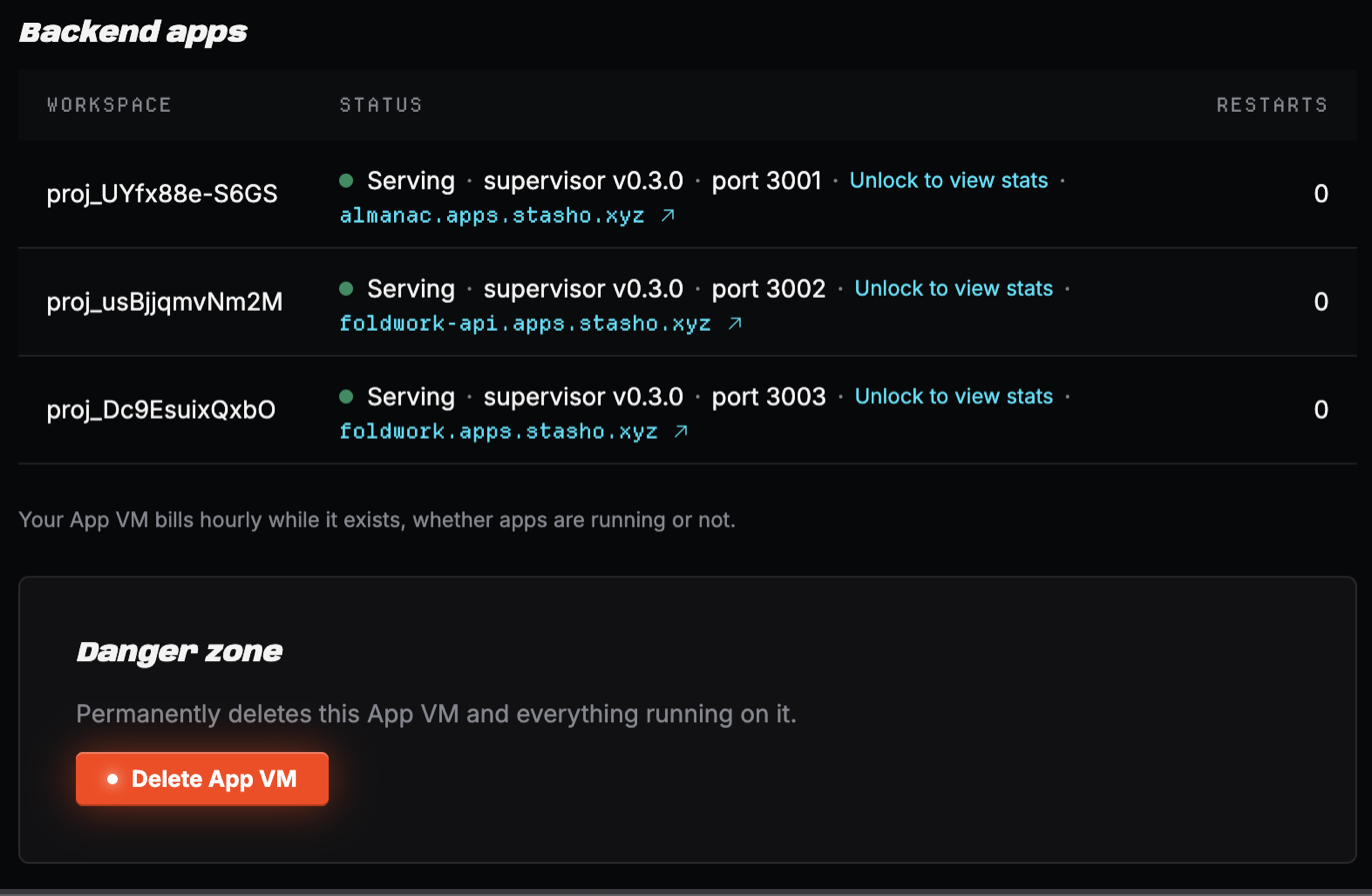
- An encrypted blob of that server app's live CPU and memory use, sealed to your wallet's encryption key. The endpoint carries only the ciphertext; it never sees, and never serves, the plaintext numbers.
It never exposes environment variables, keys, logs, file paths, project names, or anything else about your account beyond what's already public on-chain (your project ID and bundle hash are already visible there). If you're curious, fetch it yourself over IPv6: curl http://[<vm-ipv6>]:8080/. The dashboard's App VM home decrypts the stats blob in your browser to show live CPU and memory; if your encryption key is locked, it shows "unlock to view stats" instead.
Billing
Your App VM bills hourly for as long as it exists, independent of whether any server app on it is running, crashed, or sitting idle. Provisioning starts the meter; existing keeps it running. The only action that stops the cost is deleting the VM. Deleting is a signed, on-chain FORGET of the VM's own provisioning message: only your wallet can do it, and it's irreversible. Every server app on the VM stops, the address is gone for good, and a replacement VM gets a new one. The App VM home in the dashboard shows your current credit runway alongside the Delete action.
Related
- Your data on-chain: the encryption and verification model this page builds on
- Recover your data: recovering an app bundle with only your wallet key
- Storage schema: the exact wire format, including the bundle envelope